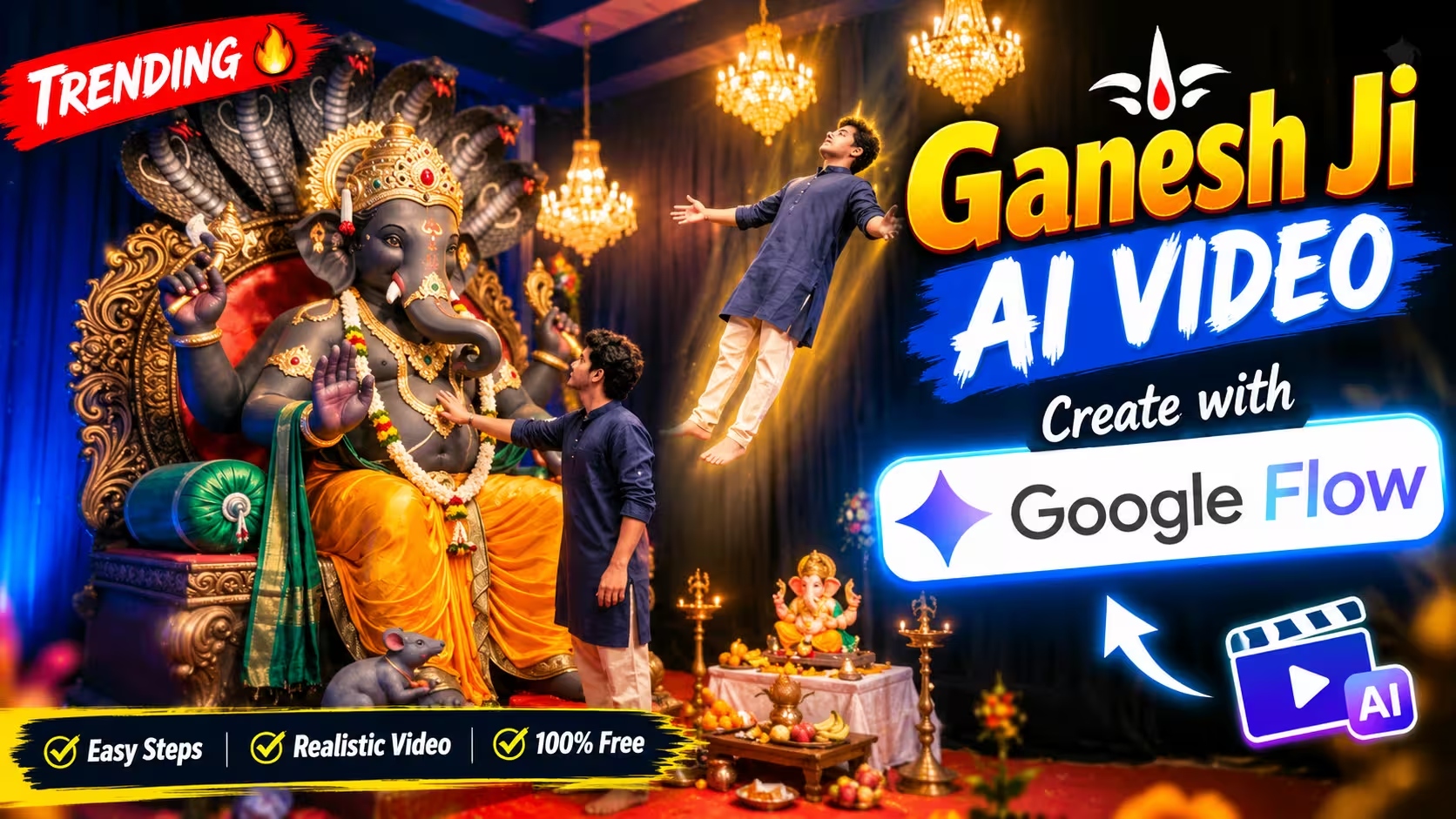
AI video creation has become much easier than it was a few years ago. Today, you do not always need advanced video-editing skills or expensive software to create an eye-catching video. With the right AI tool, a single reference image and a well-written prompt can be enough to create a completely new video.
One such workflow is currently being used to create cinematic Ganesh Ji AI videos from a single photo. These videos can have smooth camera movements, realistic environments, cinematic lighting and natural-looking motion, making them suitable for sharing on platforms such as Instagram, YouTube Shorts and other social media platforms.
In this guide, we will look at how this type of AI video can be created using Google Flow AI, what you need before starting, and some practical tips that can help you get better results.
Why Are Ganesh Ji AI Videos Trending?
Religious and devotional visuals have always performed well on social media, especially when they are presented in a fresh and visually appealing format. AI video tools have added another dimension to this type of content by allowing creators to turn a still image into a moving cinematic scene.
A simple Ganesh Ji image can be transformed into a video with camera movement, environmental effects, lighting changes and other visual details. This makes the final result feel more dynamic than a normal photo post.
Another reason this trend is popular is that the creation process does not necessarily require complicated editing. Instead of building an entire scene manually, creators can provide an appropriate reference image and describe the desired result through a prompt.
The quality of the final video still depends on the reference image, prompt and AI generation itself, but this workflow makes experimentation much easier for beginners.
What Is Google Flow AI?
Google Flow is an AI-based creative tool designed to help users create and work with visual content through natural-language instructions.
For this type of project, the basic idea is simple: provide a suitable reference image and describe what you want the generated video to look like. The AI then uses the provided information to create a video based on the instructions.
This is particularly useful when you want to create a cinematic scene without manually animating every element yourself.
What You Need Before Creating the Video
Before starting, keep a few things ready:
- A suitable Ganesh Ji reference photo
- Access to Google Flow AI
- A clear idea of the scene you want to create
- A properly written video prompt
- A stable internet connection
- Enough time to generate and test different results
The reference image is especially important. A clean, high-quality image generally gives the AI more visual information to work with.
You should also decide the overall mood of the video before writing your prompt. For example, you may want a devotional, cinematic, peaceful or grand visual style.
How the Reference Photo and Prompt Work Together
The reference image provides the visual starting point, while the prompt tells the AI what should happen in the video.
This distinction is important because simply uploading an image may not produce the type of movement or cinematic scene you have in mind. A detailed prompt can provide additional instructions about the environment, camera movement, lighting, atmosphere and overall visual style.
For the Ganesh Ji video shown in this article, the workflow uses a reference photo along with a specially prepared prompt. Google Flow AI uses these inputs to generate the final video.
Prompt
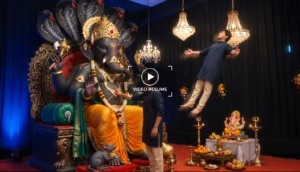
The hall has electric-blue glowing drapes, black curtain walls, two crystal chandeliers, a red carpet, brass lamps, fruit offerings, and a small Ganesha idol on an offering table. Keep the atmosphere devotional, grand, realistic, and cinematic.
CAMERA DIRECTION:
Start with only a short front-facing camera shot showing the devotee approaching the giant Ganesha idol and looking up at Bappa in awe.Then smoothly transition to the RIGHT SIDE OF BAPPA. Keep the camera on the right side for the rest of the video. Show the devotee from this side as he slowly reaches toward Ganesha and touches the idol’s finger.At the moment of contact, create a realistic translucent duplicate of the devotee’s body that separates from him and is pushed backward and upward through the hall. The ghost-like duplicate should have subtle transparency, natural motion blur, and a soft spiritual glow, while the original devotee remains physically anchored with his hand touching Ganesha.The duplicate slowly floats farther toward the right side of the frame, passing the offering table and moving toward the edge of the hall. End the video while the duplicate is still floating.Use realistic human movement, accurate hands and fingers, natural body proportions, realistic cloth movement, cinematic depth of field, blue-and-gold stage lighting, chandelier reflections, subtle VFX, and smooth camera motion.No dialogue, no subtitles, no text, no extra people, and no unnecessary camera-angle changes after moving to the right side of Bappa.Keep Ganesha’s appearance, clothing, jewelry, cobra canopy, devotee’s face, outfit, and the entire pandal environment consistent throughout the video.The final result should feel like a high-budget devotional cinematic VFX scene, not an animated or cartoon video.
How to Create This Ganesh Ji AI Video
- Open Google Flow and log in with your Google account.
- Come back to this post and copy the special Ganesh Ji AI video prompt given below.
- Go to Google Flow, click New Project, then use the Plus (+) icon to upload your clear, high-quality reference photo.
- Select Frame to Video, then choose 10 seconds duration and 16:9 aspect ratio.
- Select the uploaded frame and paste the copied prompt into the prompt box.
- Click Generate/Send and wait for Google Flow to create the video.
- Once generated, preview the video carefully. If the result is not as expected, try generating another version using the same photo and prompt.
Create Your Video
Common Mistakes to Avoid
Even with powerful AI tools, the output can vary depending on the input. Here are some common mistakes that can affect the final result.
Using a Low-Quality Reference Image
A blurry or heavily compressed image may not provide enough visual detail. Whenever possible, start with a clear and properly framed reference photo.
Writing an Unclear Prompt
A very short or vague prompt may leave too much room for interpretation. Clearly describe the type of scene and movement you want.
Adding Too Many Instructions
More text does not automatically mean a better result. If the prompt contains too many unrelated instructions, the AI may have difficulty following the main idea.
Expecting the First Generation to Be Perfect
AI-generated videos can vary from one generation to another. Treat the first result as a starting point and refine the instructions when necessary.
Ignoring the Final Video
Always review the generated video before posting it. Look for unwanted movements, strange objects, inconsistent details or visual changes that were not part of your original idea.
How to Get Better Results
A few simple improvements can make the workflow more reliable.
Start with a strong reference image and keep your creative direction clear. Instead of describing everything possible, focus on the elements that matter most to the final video.
It is also useful to think about the video before writing the prompt. Decide what the viewer should see, how the camera should move and what kind of atmosphere you want.
If the first result is close but not quite right, make small changes to the prompt. Changing one element at a time makes it easier to understand which instruction affected the result.
Most importantly, do not depend entirely on AI generation. Your choice of reference image, creative direction and final editing can make a significant difference to the finished video.
Frequently Asked Questions
Can I create a Ganesh Ji AI video from one photo?
Yes. This workflow uses a single reference image along with a specially written prompt to generate the video.
Do I need professional video-editing skills?
No advanced editing skills are required for the basic generation process. However, basic editing knowledge can be useful if you want to add music, text, transitions or other finishing touches.
Why does my result look different from the example?
AI-generated results can vary based on the reference image, prompt and generation itself. Even small differences in the input can change the final output.
Can I use my own Ganesh Ji photo?
Yes, you can use a suitable image as the reference, provided you have the necessary rights or permission to use the image.
Is the generated video ready to post immediately?
It can be, but it is always better to review the video first. You may want to make small edits, add suitable audio or adjust the format before publishing it on social media.
Final Thoughts
Creating cinematic Ganesh Ji AI videos from a single image is a good example of how quickly AI-assisted video creation is developing. What once required several editing steps can now be explored through a reference image and natural-language instructions.
Google Flow AI makes this workflow accessible to creators who want to experiment with short-form visual content without building every scene manually.
The most important part is not simply generating a video, but choosing a good reference image, writing clear instructions and checking the final result before publishing. With a little experimentation, you can create different versions and develop a style that works for your own content.
If you want to try the exact Ganesh Ji video shown in this tutorial, follow the reference-image and prompt workflow provided above and experiment with the generation until you get the result you want.