Introduction
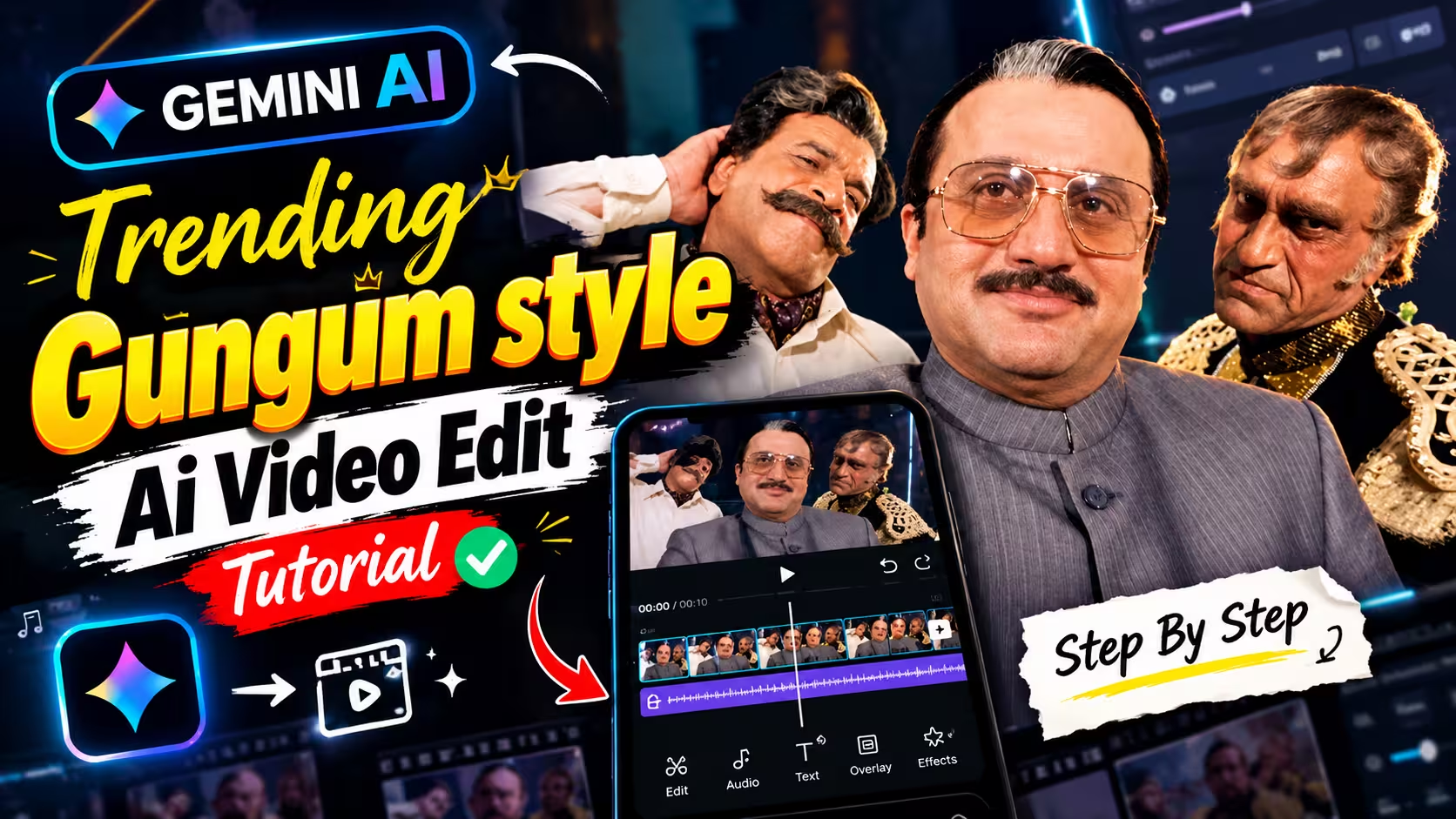
AI-generated dance videos are becoming increasingly popular on social media. You may have seen videos featuring people performing funny dance movements, unusual expressions, and cinematic actions that make the clips entertaining to watch. One such trend is the Gungun-style AI dance video, where different people appear to dance in a fun and eye-catching way.
The interesting part is that you can experiment with this style without recording a dance performance yourself. By using Google Gemini, a reference video, and three photos of your choice, you can try creating a similar AI-generated video with the help of suitable instructions. In this tutorial, we will explain how to use a reference video and your own photos to create a Gungun-style dance video. The process is explained in simple steps, so beginners can understand how to prepare their files, add the references, and generate a video. The exact options may vary depending on the video-generation features available in your Gemini account.
What Is Gungun Style AI Dance Video Editing?
Gungun-style AI dance video editing involves using artificial intelligence to create a dance video inspired by an existing reference clip. These videos often feature multiple people, funny body movements, expressive gestures, and cinematic camera angles. Instead of arranging a dance shoot with several people, you can use their photos as visual references and provide a video that demonstrates the dance style you want to recreate. The AI model then uses the available inputs and instructions to generate a new video.
For this particular workflow, the reference video helps guide the dance movements, timing, and camera work, while your three photos provide visual references for the people you want to feature. The final video may look different from the original because AI-generated results depend on the selected model and the quality of the reference files.
What You Need to Create a Gungun Style AI Dance Video
Before starting, keep the following things ready:
- Three clear photos of the people you want to include in the video.
- The Gungun-style reference video you want to recreate.
- Access to Google Gemini with a compatible video-generation workflow.
- A suitable prompt or set of instructions to guide the video generation.
Choose photos with clearly visible faces and good lighting. Keep the reference video saved on your device so you can find it easily when needed.
Reference Video
Download Video
Prompt
How to Create Gungun Style AI Dance Videos Using Google Gemini
- First, download the reference video provided above to your device.
- Keep three clear photos ready that you want to use in your AI dance video.
- Download the Google Gemini app or open the official Gemini website and log in to your Google account.
- Open Gemini and select the available video-generation model.
- Click on the plus (+) icon to upload your reference video and all three photos.
- Copy the special prompt provided below and paste it into the prompt box.
- Check that all the reference files are uploaded correctly, then click the Send button to start generating your video.
- Wait for Gemini to finish generating the video. The time required may vary.
- Watch the generated video carefully to check the dance movements, faces, and overall result.
- If you are satisfied with the result, download the video to your device and share it on your social media platforms.
Tips for Better Gungun Style AI Dance Video Results
The quality of your reference files can make a difference to the final video. Choose three clear photos with good lighting and visible facial features so the AI can better understand each person’s appearance. Use a reference video in which the dance movements and camera angles are easy to observe. Before generating the video, check that all the required files have been uploaded correctly and that each photo corresponds to the intended person.
Keep your instructions clear and focus on the dance style, body movements, facial expressions, and overall cinematic look you want to achieve. If your first result does not look right, try making small changes to your instructions or using better reference photos. It is also a good idea to review the complete video before downloading it. If you plan to share it on Instagram Reels or YouTube Shorts, choose a vertical 9:16 format if your selected video-generation workflow supports it.
Common Mistakes to Avoid
One common mistake is using blurry photos or a reference video in which the dance movements are difficult to see. This can make it harder to achieve the desired result. Another issue is selecting a video-generation workflow that does not support all the required reference inputs. Before starting, check that your selected option can accept the files you want to use and confirm that the reference video and all three photos have uploaded successfully.
It is also important not to expect an exact copy of the original video. AI-generated results may contain differences in facial details, body movements, camera angles, or background elements. Avoid giving confusing or contradictory instructions, as these can make the output less consistent. After generation, watch the entire clip and look for noticeable visual errors. If the result needs improvement, adjust the instructions or replace unclear reference files before trying again.
Frequently Asked Questions (FAQs)
1. Can I create a Gungun-style AI dance video using my own photos?
Yes, you can experiment with this style using your own photos if your selected Gemini video-generation workflow supports the required image inputs. The result may vary, and facial details may not remain perfectly consistent in every frame.
2. How many photos do I need for this video?
This tutorial uses three photos, with one photo representing each person. Choose clear images and make sure your instructions identify each person correctly.
3. Do I need a reference video to create this type of dance video?
A reference video is useful for guiding the dance movements, camera angles, and overall visual style. Without it, the generated video may follow a different sequence or produce different movements.
4. Where can I get the reference video?
You can use the reference video linked in this article, provided you have the necessary permission to download and use it. Save it to your device before starting the process.
5. Why does my generated video look different from the reference?
AI models interpret the reference material rather than guaranteeing an exact recreation. Differences in dance movements, facial expressions, camera work, and background details are possible. Better reference files and clearer instructions may help, but they cannot guarantee a perfect result.
6. Can I use the generated video for Instagram Reels?
Yes, you can prepare a suitable generated video for Instagram Reels if it meets the platform’s requirements. Vertical 9:16 video is commonly used for Reels. Make sure you have permission to use the people’s photos, reference footage, and any copyrighted music.
7. Is Google Gemini free to use for AI video generation?
Access to video-generation features, usage limits, available models, and pricing may vary by account and region. Check the options available in your Google account for the latest information.
Final Thoughts
Creating a Gungun-style AI dance video is an interesting way to experiment with AI-powered video generation. By preparing a reference video, three clear photos, and suitable instructions, you can explore a similar funny and cinematic style without recording the entire dance yourself. Follow the steps carefully, confirm that your selected workflow supports the required reference inputs, and review the finished video before publishing it. If the first result is not what you expected, try making small adjustments to your instructions or choosing better reference photos.
Disclaimer: This is an independent educational tutorial. Google Gemini and related product names belong to their respective owners. Features, availability, and usage limits may change. This article does not imply any official affiliation with or endorsement by Google.